Guide 01 · 5 min
Start here
What you need, how Cueboard fits together, and the shortest route to your first working key.
On this page
Before you start
Cueboard uses two screens: your Mac runs the companion; a browser on any device shows the controls.
- 01
Check your Mac
The private-beta companion requires an Apple-silicon Mac running macOS 13 or later. Keep the Mac and your control device online while pairing.
- 02
Choose a control screen
Use an iPad, iPhone, Android tablet, phone, or another computer with a modern browser. A spare tablet beside your keyboard is the intended setup.
- 03
Get beta access
Sign in with Google at app.usecueboard.com. New accounts complete the short beta application; approved accounts open the console.
The complete setup order
- 01
Install the Mac companion
Download the DMG, drag Cueboard Companion to Applications, then use right-click → Open for this unsigned beta.
- 02
Approve macOS permissions
Allow Accessibility so Cueboard can send the shortcut you tap. Allow Automation when macOS asks so Cueboard can identify supported window and browser context.
- 03
Pair and scan
Create a pairing in the console, open it in the Mac companion, then scan the QR code with the device that will show your deck.
- 04
Switch apps and tap
Bring Claude, Chrome, Slack, or another supported app to the front. Its built-in controls appear automatically—even before you add its profile.
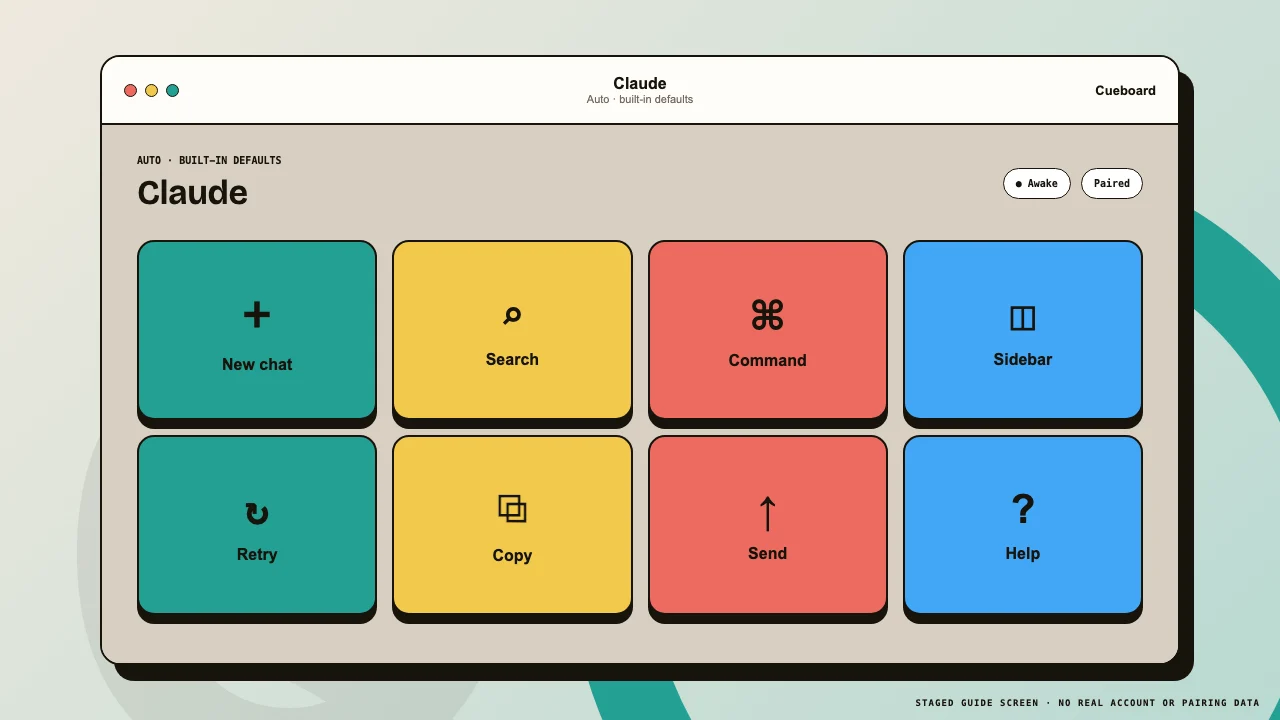 1Built-in status2Ready actions
Claude is active on the Mac, so its built-in controls surface automatically.