Guide 08 · 10 min
Customize Cueboard
Add profiles, edit keys, create pages, and turn plain-language ideas into editable workflows with AI.
On this page
Profiles and templates
- 01
Open Edit
Choose Edit mode in the console. Select a saved profile or open the template library to add one.
- 02
Add from the library
Search by app, preview its verified actions, and add the template. Pinned Essentials stays a single shared profile.
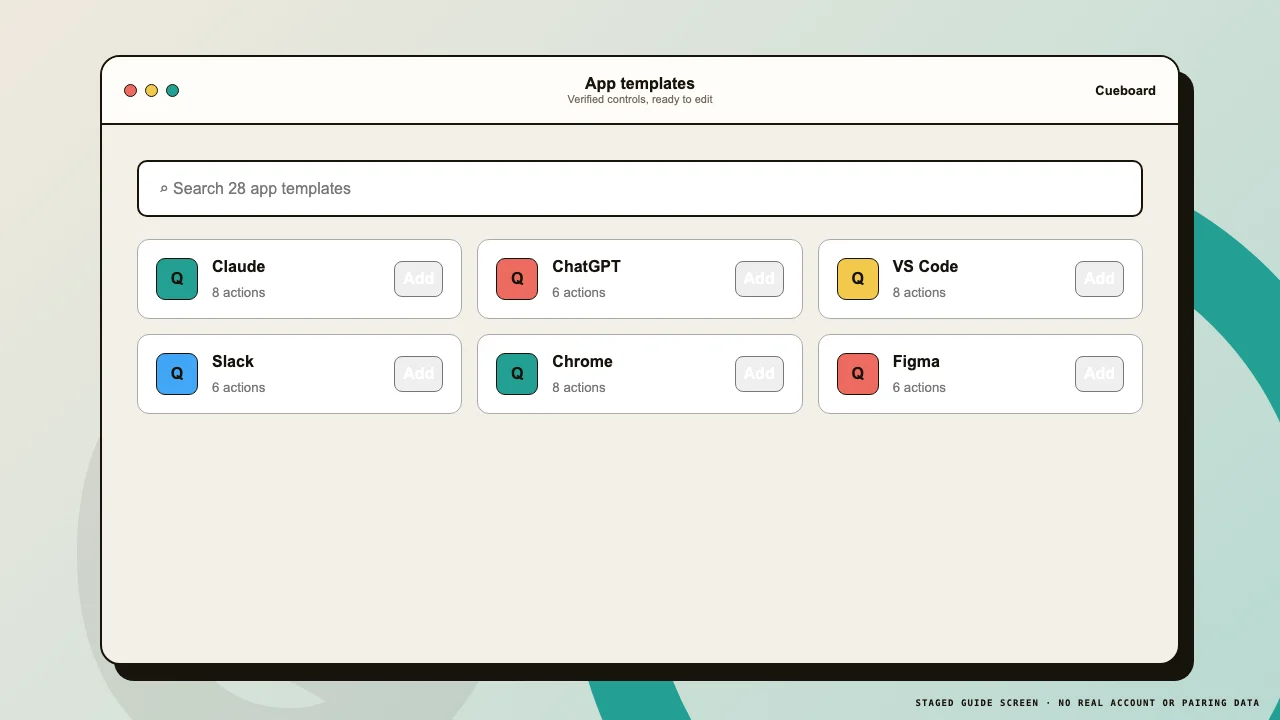 1Search2Add
Templates give you an editable starting point for supported apps. - 03
Refine context rules
Match app, bundle ID, window title, or browser URL. Use more specific rules when one app needs different controls for different projects or sites.
Keys, pages, and workflows
- 01
Edit a key
Select a key, then set its title, subtitle, icon, accent, and action. Shortcut actions send documented macOS chords through the companion.
- 02
Use folders and pages
Add pages for larger profiles and point a folder key to another page. Folder navigation stays on the control device and is never sent to the Mac.
- 03
Build a workflow with AI
Set a key’s action to Workflow, then describe the result you want in plain English. Cueboard drafts up to 12 supported app-launch, URL, shortcut, and system-control steps. Review and edit every step before you run the key.
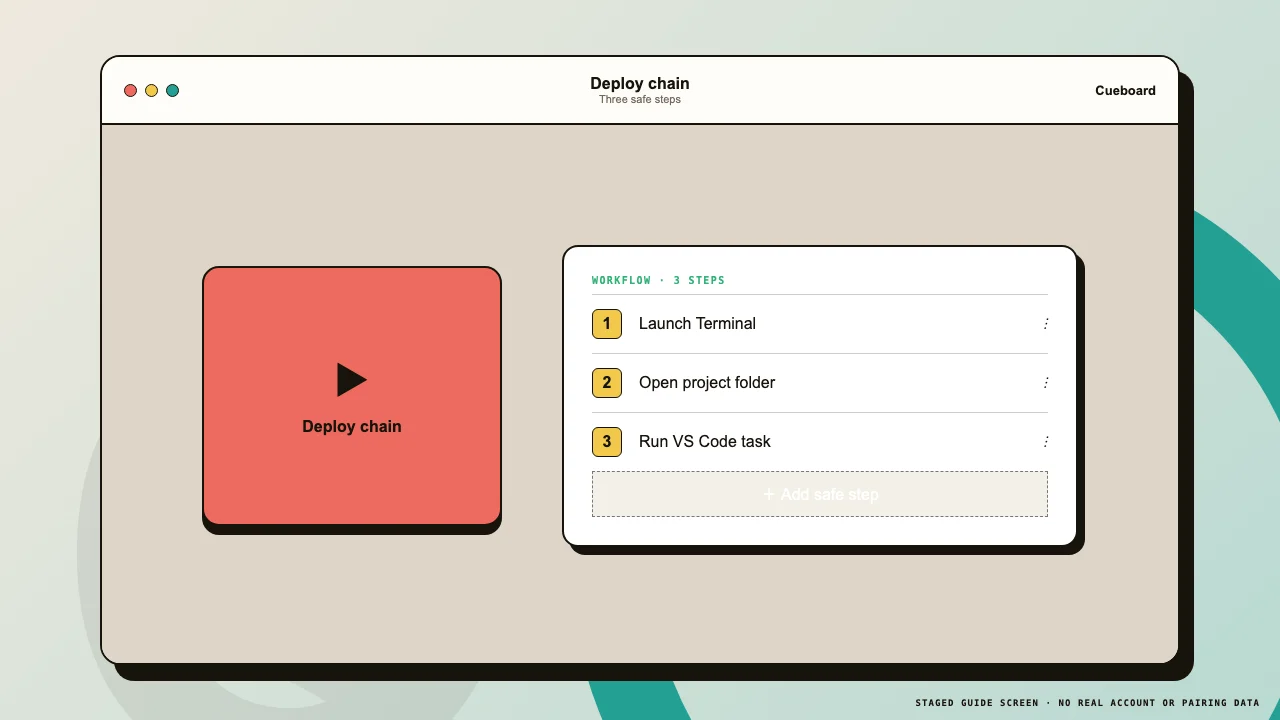 1Preview2AI draft
Describe the routine, then review the editable steps beside the tactile key preview. - 04
Build manually when you prefer
Add, remove, reorder, and edit workflow steps directly. AI is a starting point, not a requirement, and the workflow runs only when you tap its key.
Back up your work
- 01
Export JSON
Open Menu → Backup and export the current deck. Store the file somewhere private because it contains your deck configuration.
- 02
Import carefully
Review the source of any deck JSON before importing. Cueboard validates supported action types and technical safety limits.