Guide 06 · 3 min
Keep the screen awake
Use Cueboard beyond the normal Auto-Lock period and understand when the operating system can still release the lock.
On this page
Read the wake status
- 01
Awake
Cueboard currently holds a Screen Wake Lock while the page is visible. Keep-awake is enabled by default and remembered on this browser.
- 02
Keep awake
The lock was released or blocked. Tap the control to retry with fresh user interaction.
 1Awake
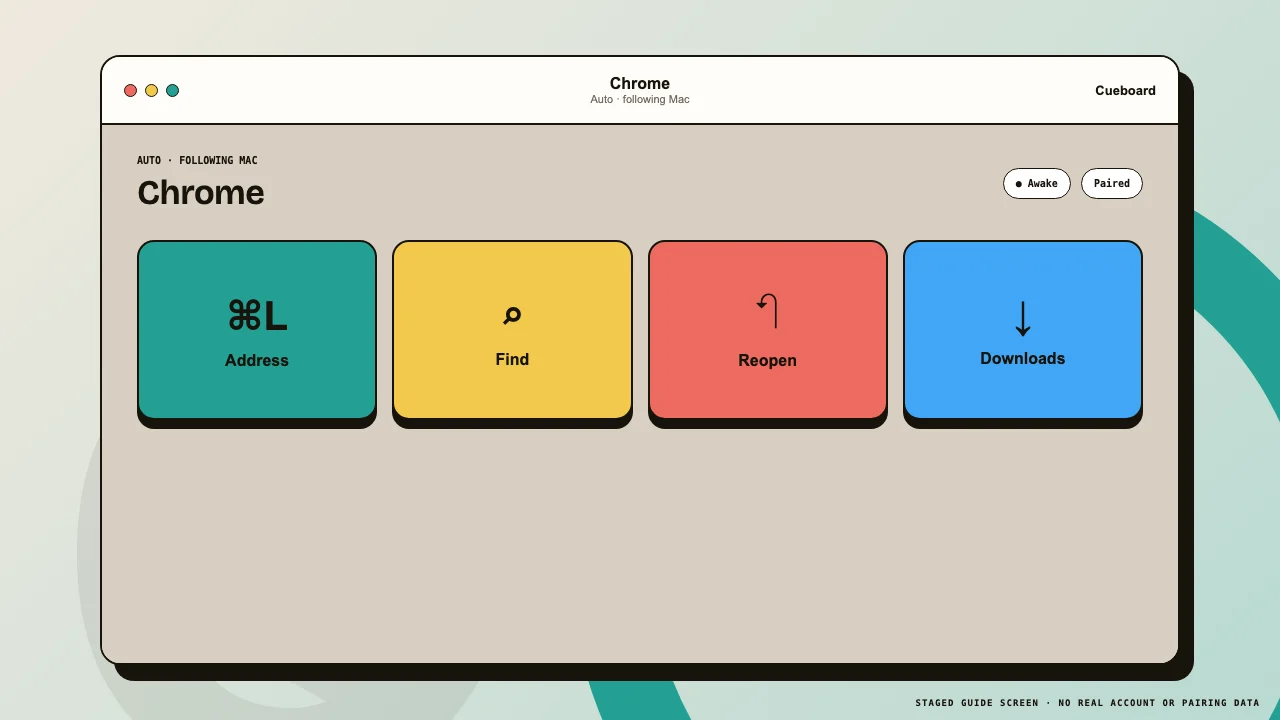
The small status lamp reports whether the visible page is holding the screen wake lock. - 03
Unavailable
This browser does not expose Screen Wake Lock. The normal device timeout remains active.
Operating-system limits
- 01
Return to Cueboard after switching apps
Cueboard requests the lock again after visibility changes and Home Screen app restores. If it does not, tap Keep awake.
- 02
Check Low Power Mode
iPadOS and other systems may deny or release wake locks under power restrictions. Disable Low Power Mode or extend Auto-Lock when continuous operation matters.
- 03
Manual locks always win
No website can override the power button, background suspension, unsupported OS versions, or device policy.