Guide 03 · 5 min
Grant macOS permissions
Approve only the permissions Cueboard needs, understand why, and repair stale grants after an update.
On this page
Accessibility
- 01
Open the permission pane
Open System Settings → Privacy & Security → Accessibility. Turn on Cueboard Companion. If it is absent, choose + and select it from Applications.
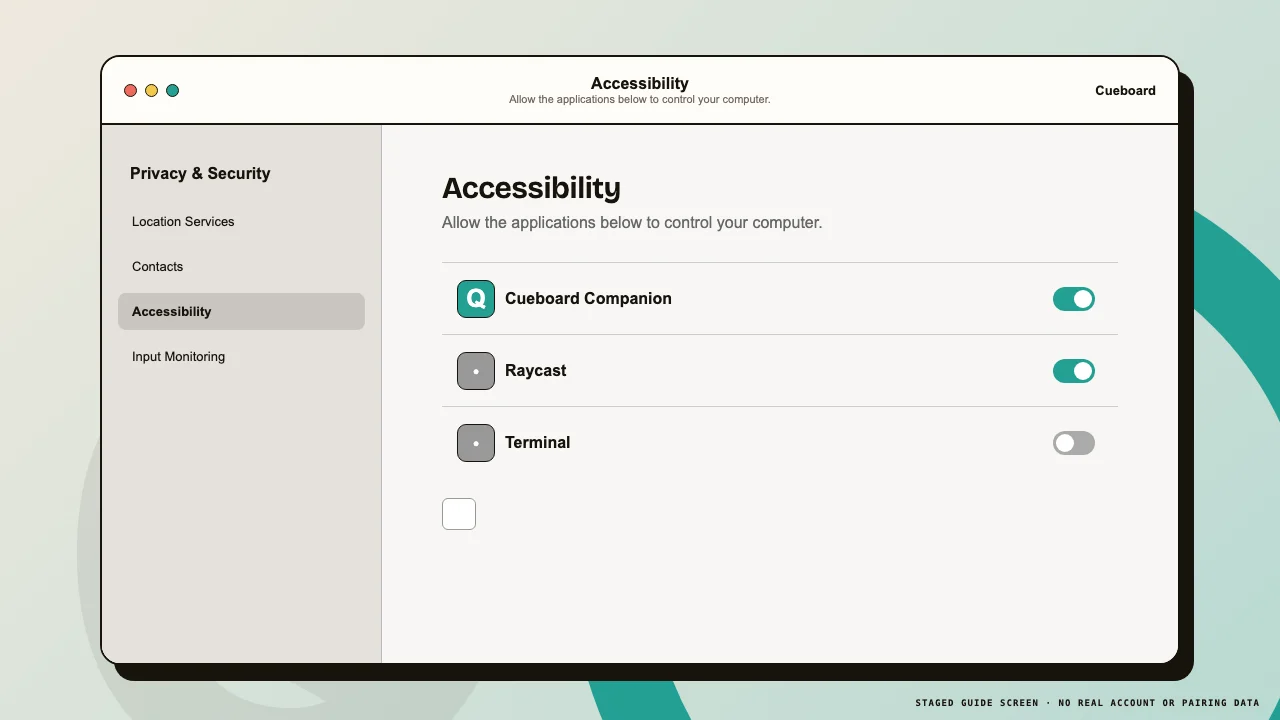 1Enable
Accessibility lets Cueboard send only the keyboard action you explicitly tap. - 02
Restart the companion
Quit Cueboard Companion from its menu, then reopen it. macOS permission changes are most reliable after a clean restart.
Automation
- 01
Trigger the prompt
Switch to Chrome, Arc, Safari, or another supported app while the companion is open. Approve the Automation prompt when macOS asks.
- 02
Check the stored grant
Open System Settings → Privacy & Security → Automation. Expand Cueboard Companion and enable the apps you want it to inspect or control.
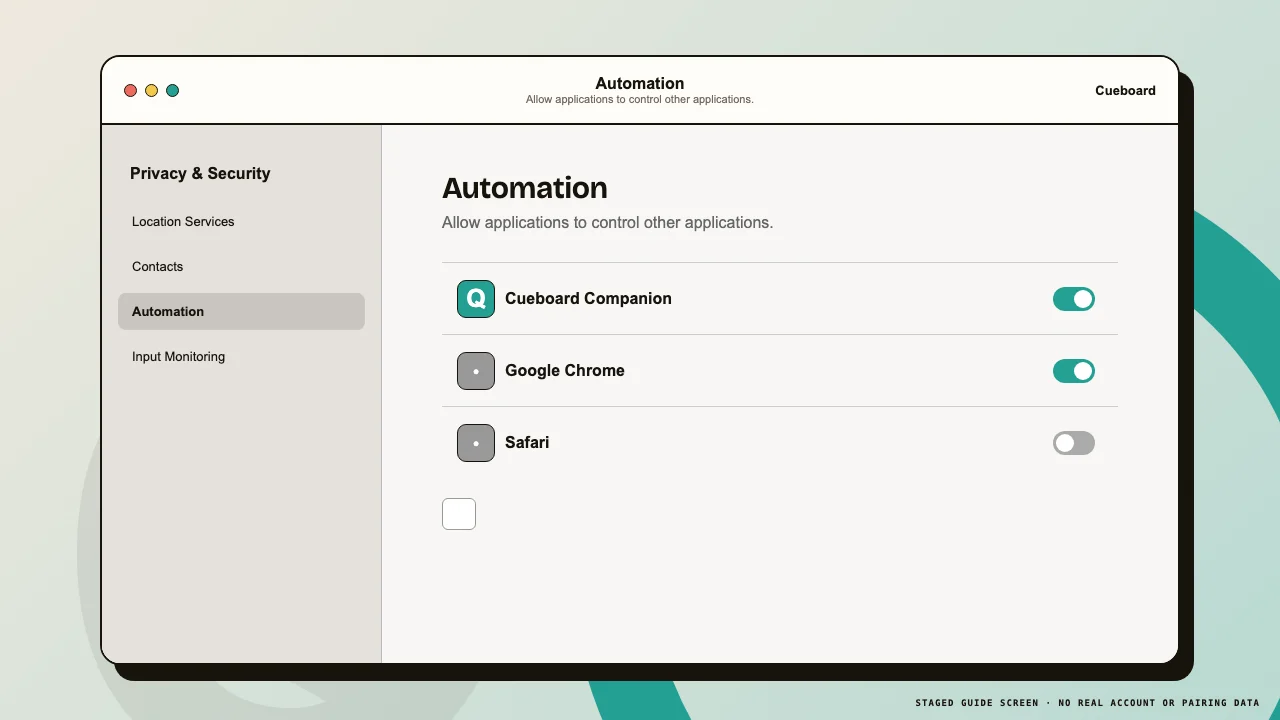 1Cueboard2Allowed app
Automation grants are app-specific and remain controlled by macOS.
Repair a stale permission
- 01
Remove the stale entry
If actions stop after installing a new beta, turn Cueboard off in Accessibility, select the entry, and remove it. Add the installed app again from Applications.
- 02
Approve Automation again
Reopen Cueboard, switch to the affected app, and accept the new prompt. Restart Cueboard once more before testing.