Guide 04 · 4 min
Pair your Mac
Create a durable private link between the web console, companion, and control screen.
On this page
Create the pairing
- 01
Open Connect
In the Cueboard console, open Connect. Choose Create pairing. Pairings must be created on app.usecueboard.com for real remote devices—not on localhost.
- 02
Open it in the companion
Choose Open in Mac companion app. macOS asks whether Cueboard may open the contextdeck link; allow it. The menu-bar status changes to paired.
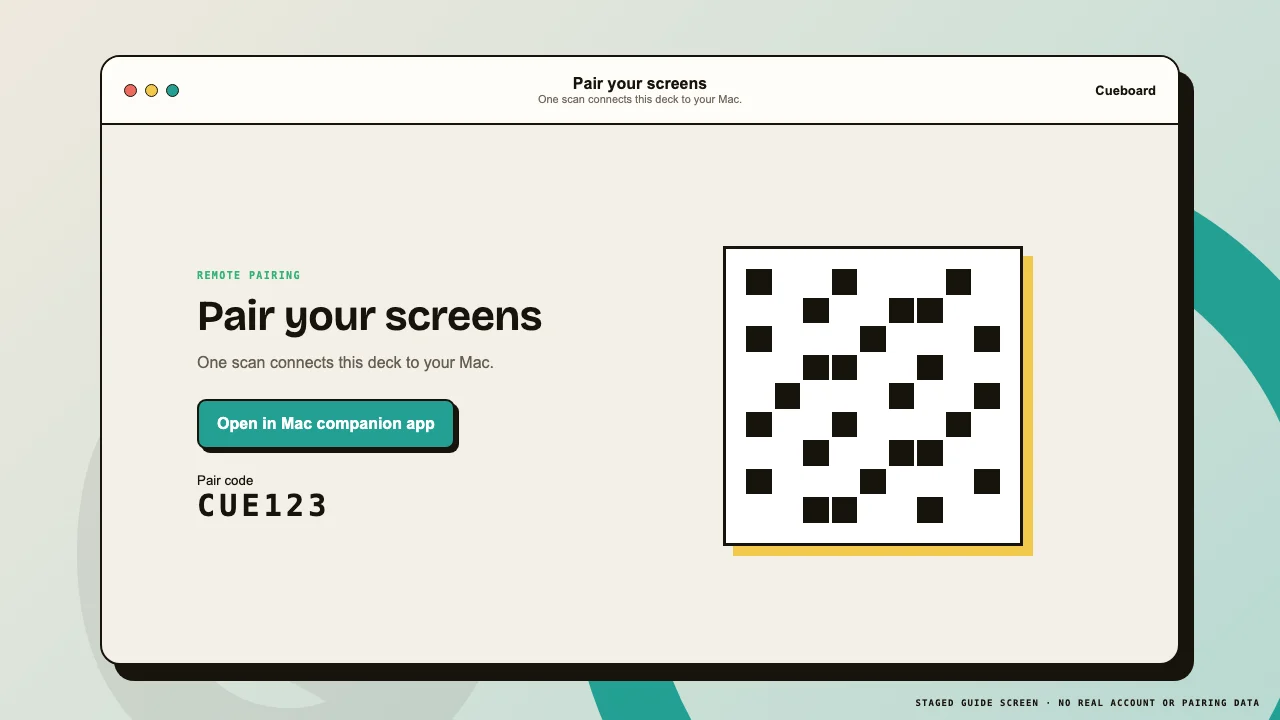 1Open companion2Scan QR
One pairing connects the Mac companion and provides the QR for your control device. - 03
Confirm Mac live
The console status changes from Demo mode to Mac live and shows the companion name and last-seen time. Keep the companion running.
Reconnect and unpair
- 01
Relaunch normally
The browser and companion remember an established pairing. They reconnect after relaunch or reboot while credentials remain valid and the service is reachable.
- 02
Re-pair after a long absence
A Mac that remains offline for more than 45 days may need a new pairing. Create a fresh one and scan its new QR code.
- 03
Unpair a lost device
Choose Unpair in the console or companion. This revokes the old session; saved copies of its device URL stop working.