Guide 05 · 5 min
Connect an iPad or phone
Put the remote deck on a tablet or phone, install it to the Home Screen, and reconnect reliably.
On this page
Open the remote deck
- 01
Scan the pairing QR
Use the tablet or phone camera to scan the QR code in the console. It opens a token-protected /deck address containing the pairing and, when available, the selected cloud deck.
- 02
Wait for the paired state
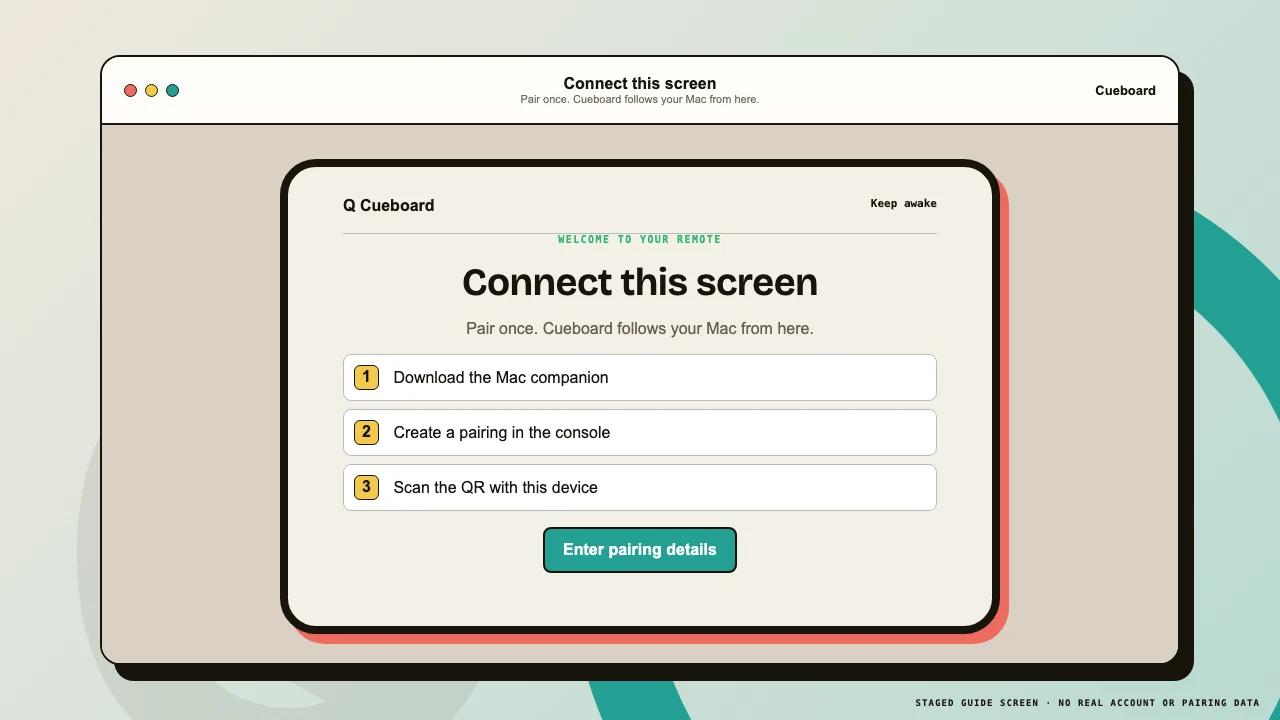
The onboarding card changes to the deck when it receives Mac context. If it says expired, create and scan a new pairing.
 1Connection2Pair manually
The remote confirms when it can reach the paired Mac.
Install on iPad or iPhone
- 01
Use Add to Home Screen
In Safari, tap Share → Add to Home Screen. Leave Open as Web App enabled, then choose Add.
- 02
Open the new icon once
Launch Cueboard from its Home Screen icon. Apple keeps installed-web-app storage separate from Safari, so scan the QR or enter pairing details again inside the installed app if needed.
- 03
Know what persists
The pairing and cloud-deck credentials stay in that installed app until its website data is cleared. Internet access and the running Mac companion are still required for remote actions.
Install on Android
- 01
Install from the browser menu
Open the paired deck in Chrome, choose Install app or Add to Home screen, then launch Cueboard from the new icon.