Guide 07 · 4 min
Use automatic app controls
Let Cueboard follow the frontmost Mac app and understand when built-in, saved, and general controls appear.
On this page
How Cueboard chooses controls
- 01
Saved profiles come first
If you added or customized a profile that matches the active app, Cueboard shows your version.
- 02
Built-in defaults need no setup
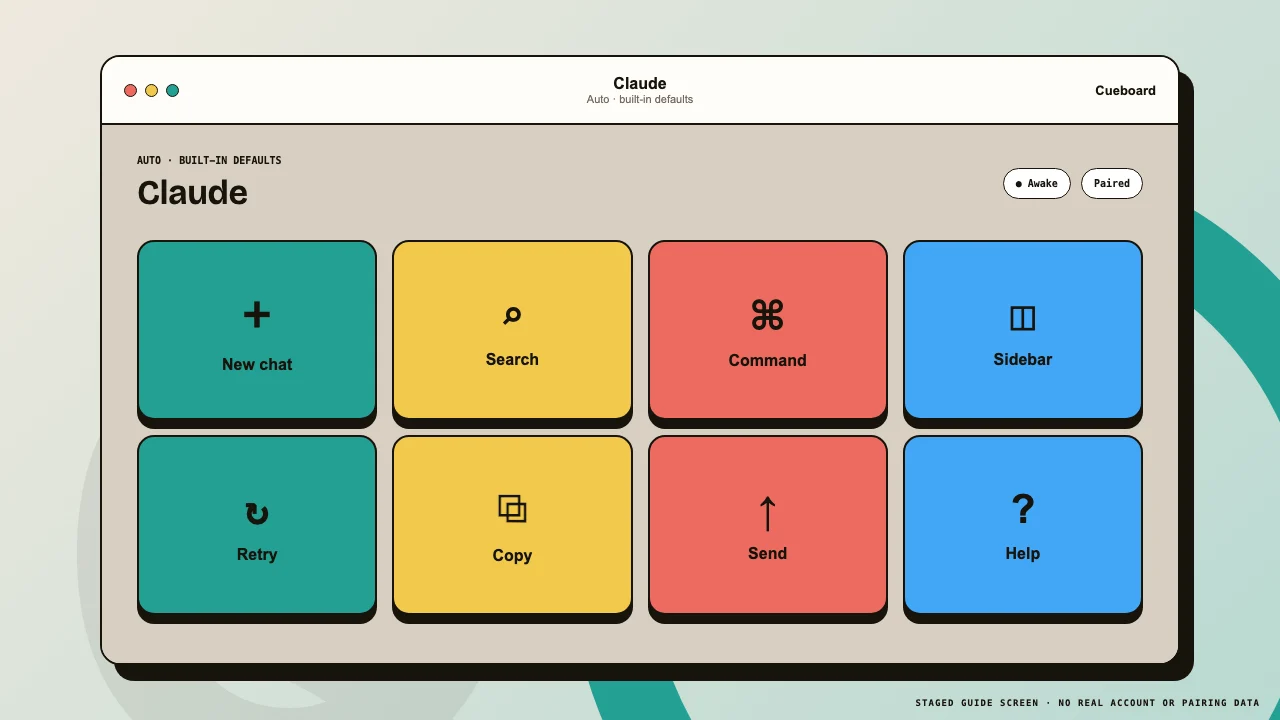
If no saved profile matches but Cueboard recognizes the app, its verified template appears automatically. The Built-in defaults label makes this clear.
 1Built-in2Actions
Built-in actions appear without adding Claude to the saved deck. - 03
General handles unknown apps
If Cueboard has no matching saved profile or built-in template, it shows General.
Make defaults yours
- 01
Choose Edit mode
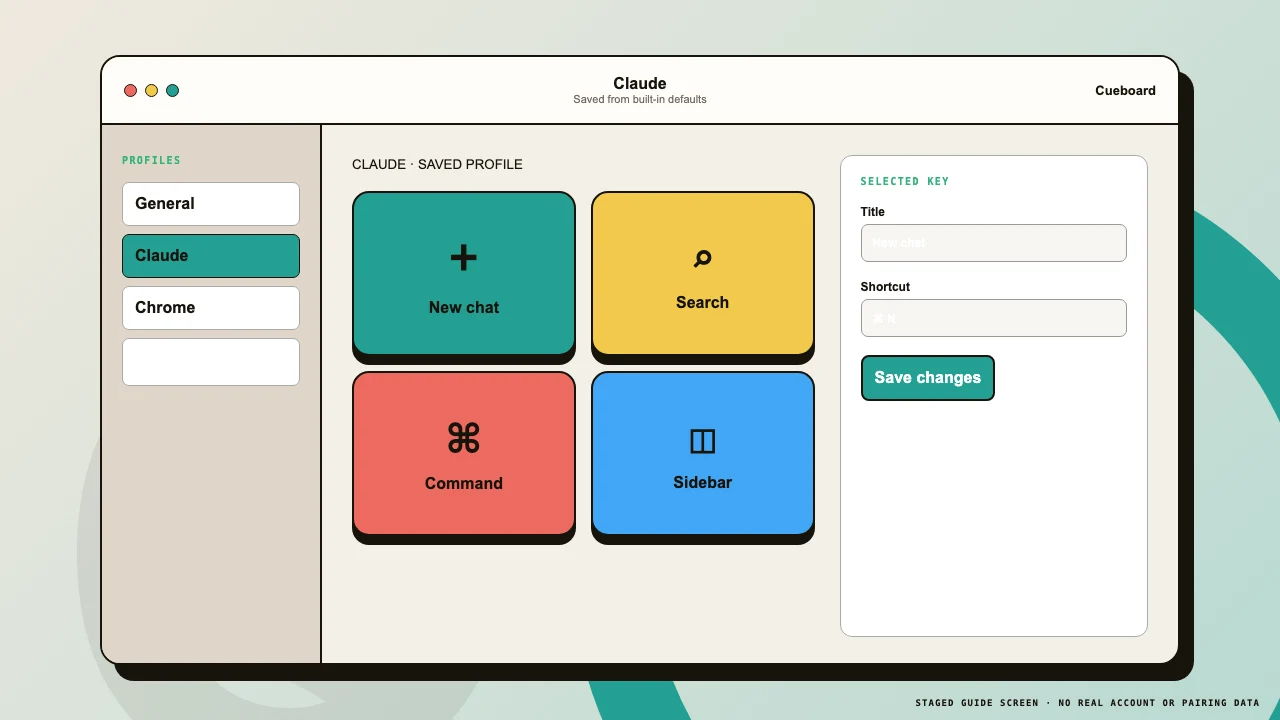
While built-in defaults are visible, choose Edit. Cueboard first creates a saved copy, then opens that copy for editing.
- 02
Change safely
Rename keys, change icons and colors, replace shortcuts, add pages, or refine context rules. Your saved profile now wins over future built-in defaults.
 1Saved profile2Key editor
Editing creates a personal profile rather than modifying Cueboard's source template. - 03
Check customized shortcuts
Built-in chords assume current English-US defaults. If an app, language, or keymap changes a shortcut, edit the action to match your Mac.